Managing Agent Knowledgebases
Written By vendor@royalcyber.com
Last updated 9 months ago
What are Knowledge Bases?
Knowledge bases are content sources that AI agents use to provide accurate, context-aware responses. CampusMindAI agents can connect to multiple knowledge sources including web pages, uploaded files, and cloud storage services like Google Drive. All content is automatically ingested into Azure AI Search for efficient indexing and retrieval.
Why Manage Knowledge Bases?
Content Control: Monitor what information your agents can access
Quality Assurance: Track synchronization status and identify issues
Performance Monitoring: View content size and processing metrics
Lifecycle Management: Update, resync, or remove outdated content
Multi-Source Integration: Centralize content from web, files, and cloud storage
Knowledge Source Types
CampusMindAI supports three primary knowledge base types:
Web Pages: Crawled website content using configurable strategies
Files: Directly uploaded documents (PDF, DOCX, TXT, etc.)
Google Drive: Synced files from connected Google Drive accounts
All content is processed and indexed in Azure AI Search for consistent retrieval across agents.
Web Pages Knowledge Base
Dashboard Overview
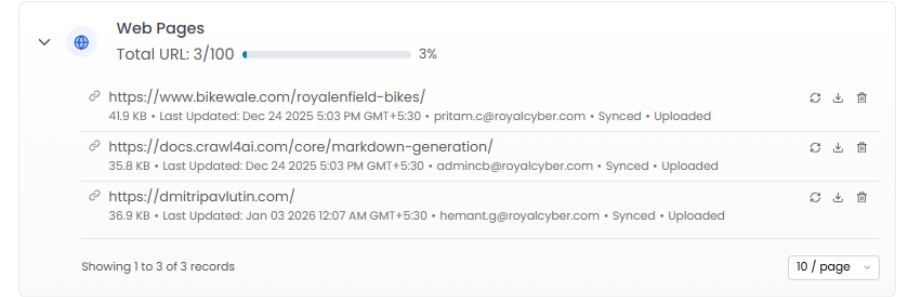
The Web Page Crawler dashboard displays:
Limit: Maximum 100 URLs per agent
Crawling Strategies
Depth-First: Explores each branch completely before moving to next
Breadth-First: Explores all pages at current level before going deeper
Error Reporting
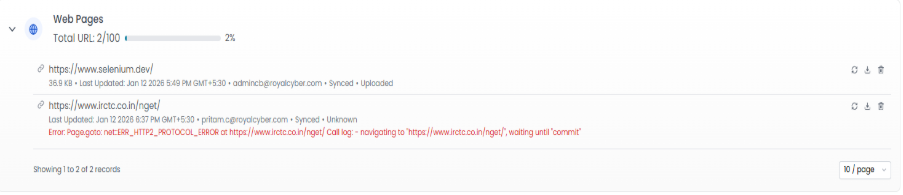
When crawling fails, the dashboard displays error details:
Common errors:
Unreachable pages (404, 500 errors)
Connection timeouts
Parsing failures
Strategy-related errors
Access denied (authentication required)
Action Controls
Each URL entry provides three actions:
Resync
Re-crawls the URL on demand
Updates processed content and size
Refreshes timestamps automatically
Download
Downloads processed crawl output
Enables offline review of extracted content
Delete
Permanently removes URL and all associated data
Removes from all integrated systems including Azure AI Search
Warning: Deletion is permanent and cannot be undone.
Files Knowledge Base
Dashboard Overview
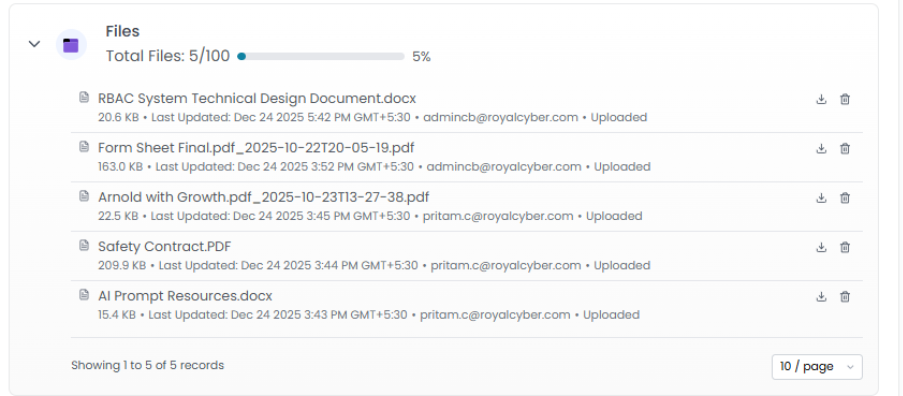
The Files dashboard displays:
Limit: Maximum 100 files per agent
Supported File Types
Documents: PDF, DOC, DOCX
Spreadsheets: XLS, XLSX, CSV
Text: TXT, MD
Presentations: PPT, PPTX
Maximum file size: 10MB per file (configurable by admin)
Action Controls
Download
Downloads the uploaded file
Enables offline access or review
Original file format preserved
Delete
Permanently removes file from system
Removes all associated references
Removes from Azure AI Search index
Warning: Deletion is permanent and cannot be undone.
Google Drive Knowledge Base
Dashboard Overview
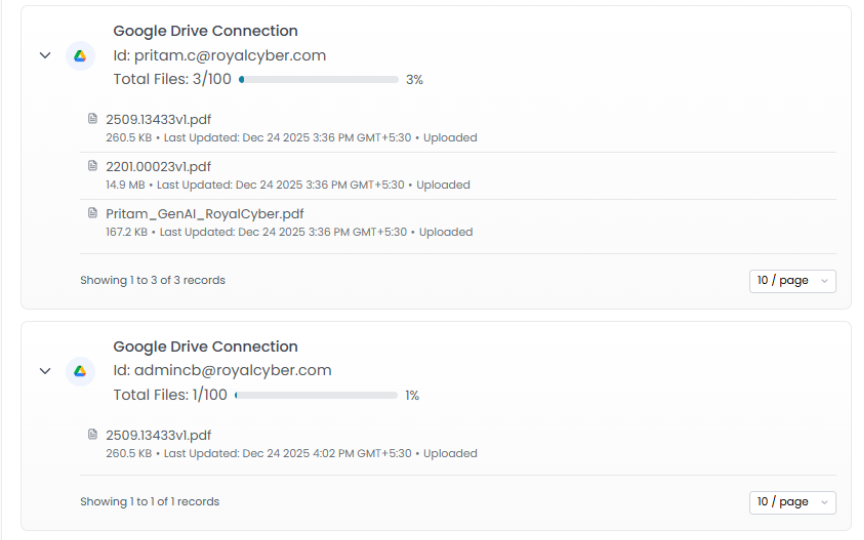
The Google Drive dashboard displays files organized by connected user accounts:
Per-Account View:
Connected user email
Total files synced
Individual file listings
Per-File Information:
Limit: Maximum 100 files per connected account
Multi-Account Support
Each user's files shown separately
Clear visibility per account
Independent sync status tracking
Per-user file limits
Synchronization
Automatic Sync:
Files sync automatically when modified in Drive
Status updates reflect current sync state
Timestamps show last successful sync
Sync Statuses:
Synced: File successfully indexed in Azure AI Search
Pending: Waiting for sync
In Progress: Currently syncing
Failed: Sync error occurred
Adding Content
Web Pages
Navigate to agent edit screen → Knowledge tab
Click Add Web Page
Enter root URL and select crawling strategy
Click Start Crawl
Monitor status in dashboard
Files
Navigate to agent edit screen → Knowledge tab
Click Upload File
Select file(s) from computer
Click Upload
Monitor sync status in dashboard
Google Drive
Navigate to agent edit screen → Knowledge tab
Click Connect Google Drive
Authenticate with Google account
Files sync automatically
Monitor in dashboard
Updating Content
Web Pages: Click Resync to re-crawl updated website content
Files: Delete old file and upload new version
Google Drive: Files update automatically when modified in Drive
Removing Content
Click Delete action to permanently remove content from any knowledge source.
Troubleshooting
Crawl Failures
Common causes:
Website accessibility issues
URL incorrect
Website requires authentication
Robots.txt restrictions
Solutions:
Verify URL is publicly accessible
Check website allows crawling
Try different crawling strategy
File Sync Issues
Common causes:
Unsupported file format
File size exceeds limit
Network connectivity
Solutions:
Convert to supported format
Compress large files
Retry upload
Google Drive Sync Problems
Common causes:
Authentication expired
File permissions in Drive
Account connection inactive
Solutions:
Re-authenticate Google Drive
Verify file sharing settings
Reconnect account if needed
Content Limits
Note: Limits are configurable by administrators and may vary by subscription tier.
Support
For assistance with knowledge base management:
Documentation: CampusMind Knowledge Base
Live Chat: Available in dashboard (bottom right)
Email: support@campusmind.ai
Was this helpful?
Still need help? Share an idea