Making an Entire Course Accessible (Bulk Course Processing)
Bulk-remediate all PDF documents within a Canvas LMS course for WCAG 2.1 AA compliance.
Written By Asad Jobanputra
Last updated 7 months ago
Overview
The Make Course Accessible workflow connects directly to your institution's Canvas LMS and automatically discovers all PDF files associated with a selected course. You choose which documents to process, configure your remediation strategy, and submit — the system processes every file and automatically uploads the remediated versions back into Canvas when complete.
This is the most efficient path for ensuring a course is fully accessible before a term begins, or for remediating legacy course content at scale.
Who It's For
Instructors who want to ensure an entire course's document library meets WCAG 2.1 AA requirements in one go.
Instructional Designers & Course Developers preparing course shells for delivery.
Department Administrators managing accessibility compliance across multiple courses.
Faculty remediating existing courses that have accumulated non-compliant PDFs over multiple semesters.
Why Use It
Processing course-by-course ensures compliance across entire modules, not just individual files. Because the system reads directly from Canvas and writes remediated files back to Canvas automatically, there is no manual downloading, re-uploading, or file management required. The workflow also tracks the per-document remediation status, giving you a clear compliance picture at a glance.
Requirements & Permissions
Your institution's Canvas LMS must be integrated with CampusMind. Contact your administrator if courses do not appear in the dropdown.
You must have instructor or admin-level access to the Canvas course you want to process.
Only PDF files within the course are surfaced and processed.
Step-by-Step Instructions
This workflow is a 2-step wizard.
STEP 1: Select Course & Documents
1. Open the Course Selection Page
From the Document Accessibility Hub dashboard, click the Make Course Accessible button in the "Process Course Documents" banner.
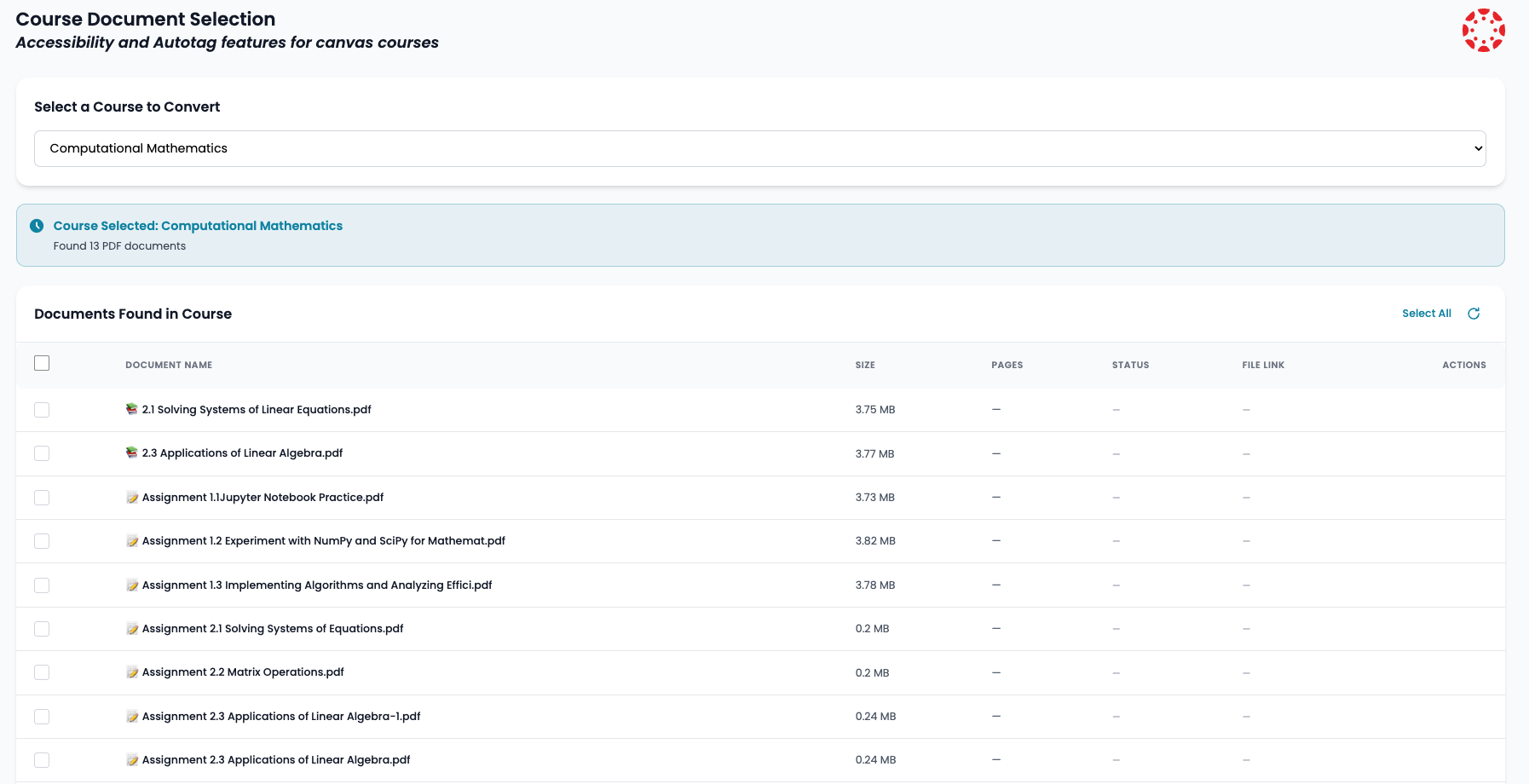
You will land on the Course Document Selection page. A step indicator at the top confirms your position:
2. Select a Course
Click the "Select a Course to Convert" dropdown.
All Canvas courses you have access to will be listed. Wait a moment if it shows "Loading courses…"
Click to select the course you want to remediate (e.g., "Brand Management").
A teal confirmation banner will appear below the dropdown confirming the course name and the number of PDFs discovered.
No courses appearing? The Canvas integration may not be configured for your account. Contact your CampusMind administrator.
Was this helpful?
Still need help? Share an idea