The Document Accessibility Hub — Overview & Getting Started
Make your documents WCAG 2.1 AA compliant automatically.
Written By Asad Jobanputra
Last updated 7 months ago
Overview
The Document Accessibility Hub is CampusMind's AI-powered compliance engine that automatically converts PDF documents to meet WCAG 2.1 Level AA and PDF/UA-1 ISO 320000 standards — the international benchmarks for digital accessibility. Rather than manually remediating files with specialist software, you submit documents to the Hub and the system applies comprehensive fixes: tag structure, reading order, heading hierarchy, image captioning, table correction, color contrast improvements, and more.
The Hub supports two core workflows:
Single file upload — remediate one or more PDFs you select directly from your computer
Bulk course processing — pull all PDFs from a Canvas course and process them in one submission
Important: This automation resolves approximately ~80% of common accessibility issues. A manual review pass is recommended for full compliance, particularly for documents with highly complex or non-standard layouts.
Who It's For
Instructors: Ensure course readings, lecture slides, handouts, and assignments are screen-reader accessible before the start of a term.
Faculty & Course Designers: Quickly bring legacy course materials into WCAG 2.1 AA compliance without specialist software or manual tag editing.
Department Administrators & Staff: Remediate non-compliant documents to satisfy institutional ADA and Section 508 obligations.
Disability Services Teams: Proactively process student-facing documents to reduce accommodation request volume.
Why Use It
Document accessibility is a legal and ethical requirement under the Americans with Disabilities Act (ADA), Section 508 of the Rehabilitation Act, and most institutional equity policies. Non-compliant PDFs are unreadable by screen readers, incompatible with assistive technologies, and create barriers for students with visual, cognitive, or motor disabilities.
The Accessibility Hub ensures:
Automated Compliance: The system automatically applies WCAG 2.1 AA-required tags, alt-text, reading order, and structural corrections, measured against the PDF/UA-1 ISO 320000 standard.
Transparent Scoring: Every processed document receives a compliance score (e.g., "100% — 105 of 106 rules passed") with a full breakdown of issues found and fixes applied.
Time Savings: Eliminates hours of manual work in tools like Adobe Acrobat Pro or axesPDF.
Inclusive Learning: Processed documents are readable by screen readers (JAWS, NVDA, VoiceOver), refreshable Braille displays, and other assistive technologies.
Canvas Integration: Remediated files are automatically uploaded back into the originating Canvas course — no manual re-upload required.
Batch Efficiency: Process an entire course's worth of PDFs in a single submission.
Requirements & Permissions
Access: The Accessibility Hub is available under the Workforces section of the CampusMind navigation. Contact your institution's CampusMind administrator if the Accessibility option does not appear in your sidebar.
File Format: Only PDF (
.pdf) files are supported at this time.Canvas Integration: The bulk course workflow requires that your institution's Canvas LMS is connected to CampusMind. If Canvas courses do not appear in the course dropdown, contact your administrator.
Navigating to the Accessibility Hub
Log in to your CampusMind environment.
In the left sidebar, locate the Workforces section.
Click the Accessibility icon (circular accessibility symbol) to open the Document Accessibility Hub.

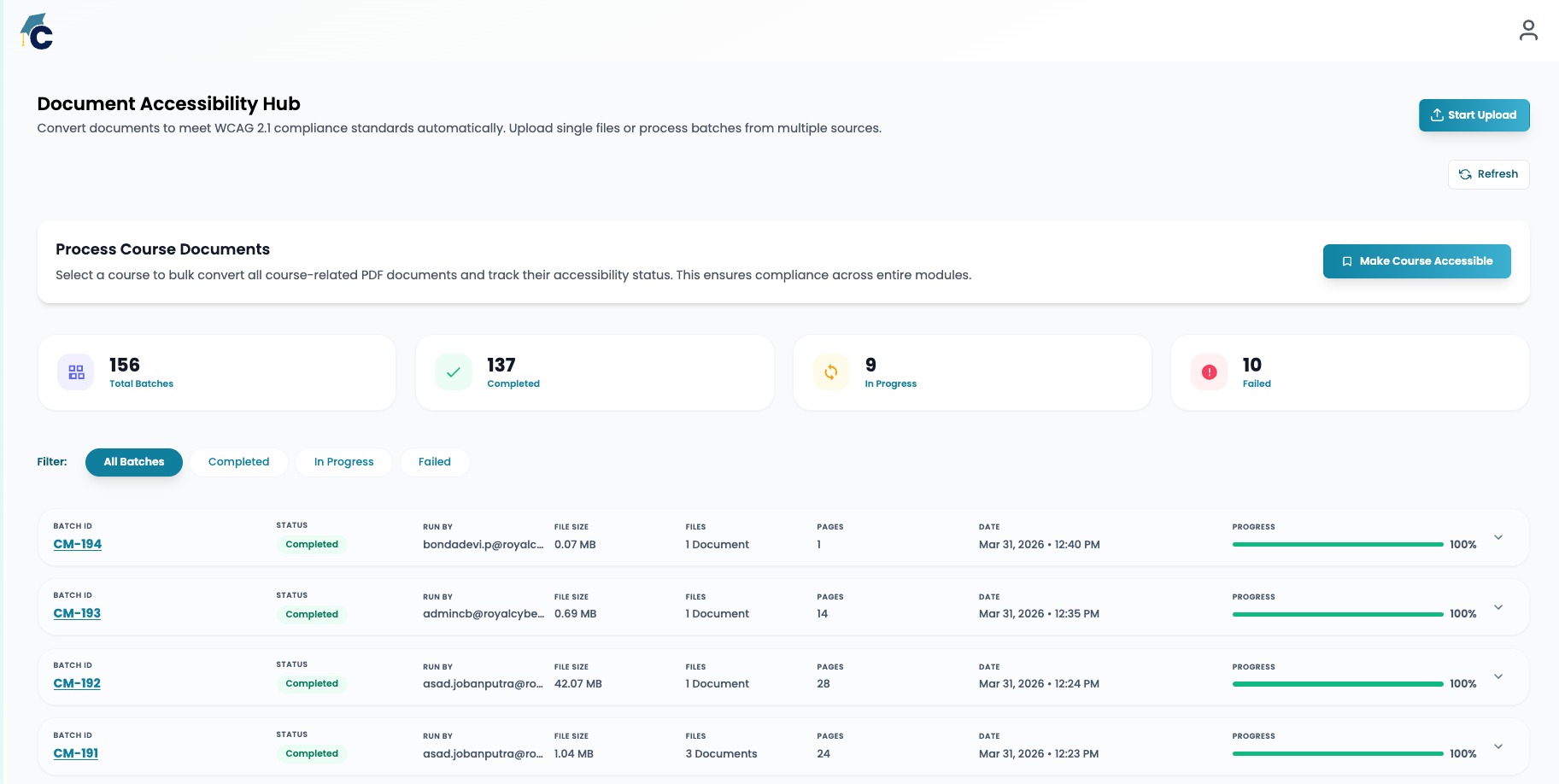
Understanding the Dashboard
Header Section
Start Upload (teal button, top-right): Begins the single-file remediation workflow.
Refresh (circular arrow): Manually refreshes batch statuses — use this periodically when monitoring running jobs.
Process Course Documents Banner
A highlighted card provides direct access to bulk course processing. Click Make Course Accessible to begin processing an entire Canvas course's PDF library at once.
Summary Metrics (4 Cards)
Filter Tabs
Four tabs narrow the batch list: All Batches (default), Completed, In Progress, Failed.
Batch List
A live feed of all batch submissions, sorted newest-first. Each row shows: Batch ID, Status badge, submitter email, file size, number of files, total page count, date/time submitted, and a color-coded progress bar.
Related Pages / Next Steps
Remediating Individual Files (Single File Upload) — Process one or more PDFs directly from your computer.
Making an Entire Course Accessible — Bulk-process all PDFs within a Canvas course.
Configuring the Accessibility Strategy — Detailed explanation of remediation strategies and advanced settings.
Monitoring Batches & Reviewing Results — Track progress, view compliance reports, and download remediated files.
Was this helpful?
Still need help? Share an idea