Remediating Individual Files (Single File Upload)
Upload one or more PDFs from your computer for immediate WCAG 2.1 AA remediation.
Written By Asad Jobanputra
Last updated 7 months ago
Overview
The Single File Upload workflow allows you to submit PDF files directly from your computer for automated accessibility remediation. This is the fastest path for processing a specific document — a course handout, a department form, a policy PDF — without needing to go through a Canvas course. You can upload one file or several files at once in a single session.
Who It's For
Instructors remediating a specific reading, assignment, or handout.
Staff processing department or administrative documents not stored in Canvas.
Anyone who needs to remediate PDFs that exist only on their local computer.
Why Use It
The single file upload path gives you direct, granular control over exactly which documents are submitted, making it ideal for targeted remediation of high-priority or newly created materials before distributing them to students.
Requirements & Permissions
An active CampusMind account with Accessibility Hub access.
Files must be in PDF format (
.pdf). Other formats are not currently supported.Multiple files can be uploaded and processed in a single session.
Step-by-Step Instructions
1. Open the Upload File Page
From the Document Accessibility Hub dashboard, click the Start Upload button in the top-right corner.
You will be taken to the Upload File page.
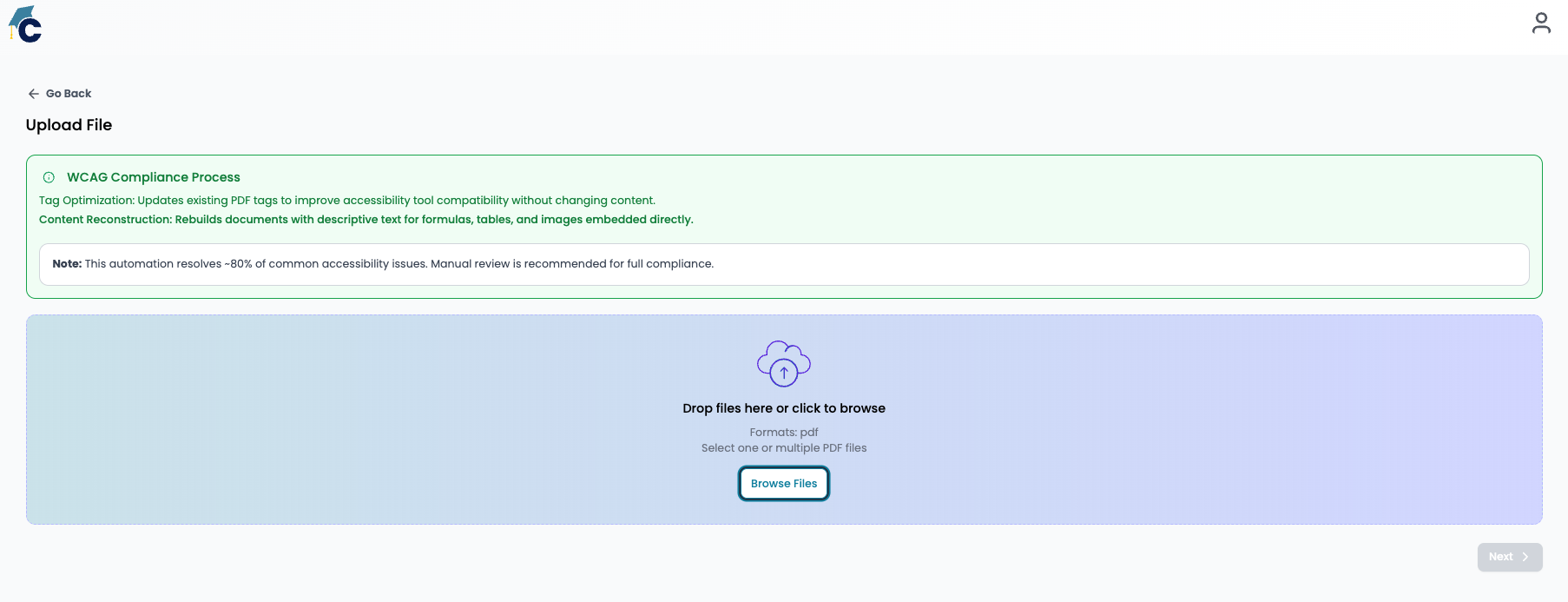
2. Review the WCAG Compliance Process Information
Before uploading, read the green information banner at the top of the page. It explains the two processing modes:
Tag Optimization: Updates existing PDF tags to improve accessibility tool compatibility without changing the document's visual content or layout. Best for already well-formatted, typeset PDFs.
Content Reconstruction: Rebuilds documents with descriptive text for formulas, tables, and images embedded directly into the document. Best for scanned documents, image-heavy files, and complex academic content.
Note: The specific strategy is configured on the next screen. This banner is informational only. See Configuring the Accessibility Strategy for full details.
3. Select Your PDF File(s)
There are two methods for adding files:
Method A: Drag and Drop
Locate the PDF file(s) on your computer.
Click and hold the file(s), then drag them directly into the blue-purple dashed dropzone area.
Release to drop. Files will be added to the upload queue.
Method B: Browse Files
Click the Browse Files button inside the dropzone.
A file picker window will open on your computer.
Navigate to and select your PDF file(s). Hold
Cmd(Mac) orCtrl(Windows) to select multiple files at once.Click Open to add them to the queue.
Accepted formats: PDF only. The upload area confirms this with "Formats: pdf — Select one or multiple PDF files."
4. Proceed to Configuration
Once files are added, the Next › button in the bottom-right corner becomes active (it is grayed out until at least one file is added).
Click Next › to proceed to the Configure Accessibility Strategy screen.
Follow the Configuring the Accessibility Strategy article to choose your remediation method, then click Run Accessibility Remediation to submit.
5. Monitor Your Batch
After submission, you will be returned to the Document Accessibility Hub dashboard. Your new batch will appear at the top of the batch list with an In Progress status. See Monitoring Batches & Reviewing Results to track progress and retrieve your remediated files.
Best Practices / Notes
Group similar documents together: When submitting multiple files, group documents of the same type so the strategy you choose applies appropriately to all of them.
Name your files clearly before uploading: The filename you upload becomes the document name visible in the batch list and in Canvas after upload.
Do not close the browser tab during the configuration step — your file selection will be lost.
Troubleshooting
"Next" button remains grayed out: Ensure at least one valid
.pdffile has been added to the drop zone. Non-PDF files will not activate the button.File does not appear after drag-and-drop: Try using the Browse Files method. Some browser or OS security settings may restrict drag-and-drop from certain protected folders.
Upload seems to hang: Refresh the page and try again. Very large files (50MB+) may take a moment to register.
Related Pages / Next Steps
Configuring the Accessibility Strategy — Choose between Tag Optimization and Full Reconstruction; set content type and output format.
Monitoring Batches & Reviewing Results — Track your batch, view the compliance report, and download the remediated file.
Making an Entire Course Accessible — Use this workflow to process all PDFs in a Canvas course at once.
Was this helpful?
Still need help? Share an idea