Adjust advanced agent knowledgebase settings (chunk size, overlap, and Top K)
Written By vendor@royalcyber.com
Last updated 6 months ago
Applies to: Creating or editing an agent — Knowledge base step (CampusMind / Mind Platform).
Time: About 2 minutes to review; longer if you change chunk settings and wait for re-indexing.
When you finish, you will know how Chunk size, Chunk overlap, and Top K affect your agent, which changes are safe, and what happens when you save.
Why this exists
Your manuals, policies, and course files are not read cover-to-cover by the assistant on every question. They are indexed in pieces so the system can find the right passages quickly. Knowledge settings let you align that indexing with how your organization actually writes and uses content — without needing to know AI internals.
Benefits you can expect when settings match your use case:
Better answers for real documents — Chunk size and overlap help ensure important sentences are not split awkwardly or lost between sections, improving relevance and factual grounding for typical employee or student questions.
Efficiency and usage — Each reply uses only the chunks retrieved for that question. Top K and chunk sizing influence how much material is processed per answer. Turning Top K down can reduce content per response, lowering cost and speeding up replies. Turning it up can improve thoroughness when questions need evidence from many places. There is always a trade-off; there is no single best number for every tenant.
Controlled tuning — Top K can be adjusted safely after go-live to balance accuracy vs. speed/cost without rebuilding your knowledge. Chunk size and overlap are for when you change how documents are cut and stored — useful when retrieval consistently misses content or pulls irrelevant sections.
Before you start
You need permission to create or update agents and an agent that is far enough along to have a Knowledge base step.
The Knowledge setting dialog is only available from the Knowledge base step while building or editing an agent (
/agents/createor/agents/update).To save any of these settings, the agent must already have an agent ID. If you have not saved the agent profile yet, save it first — otherwise the product will prompt you for an agent ID before saving knowledge settings.
Open Knowledge setting
Open Create agent or Update agent and go to the Knowledge base step.
In the header area for that step, select the Knowledge base settings control (gear icon).
The Knowledge setting panel opens.
What each setting does
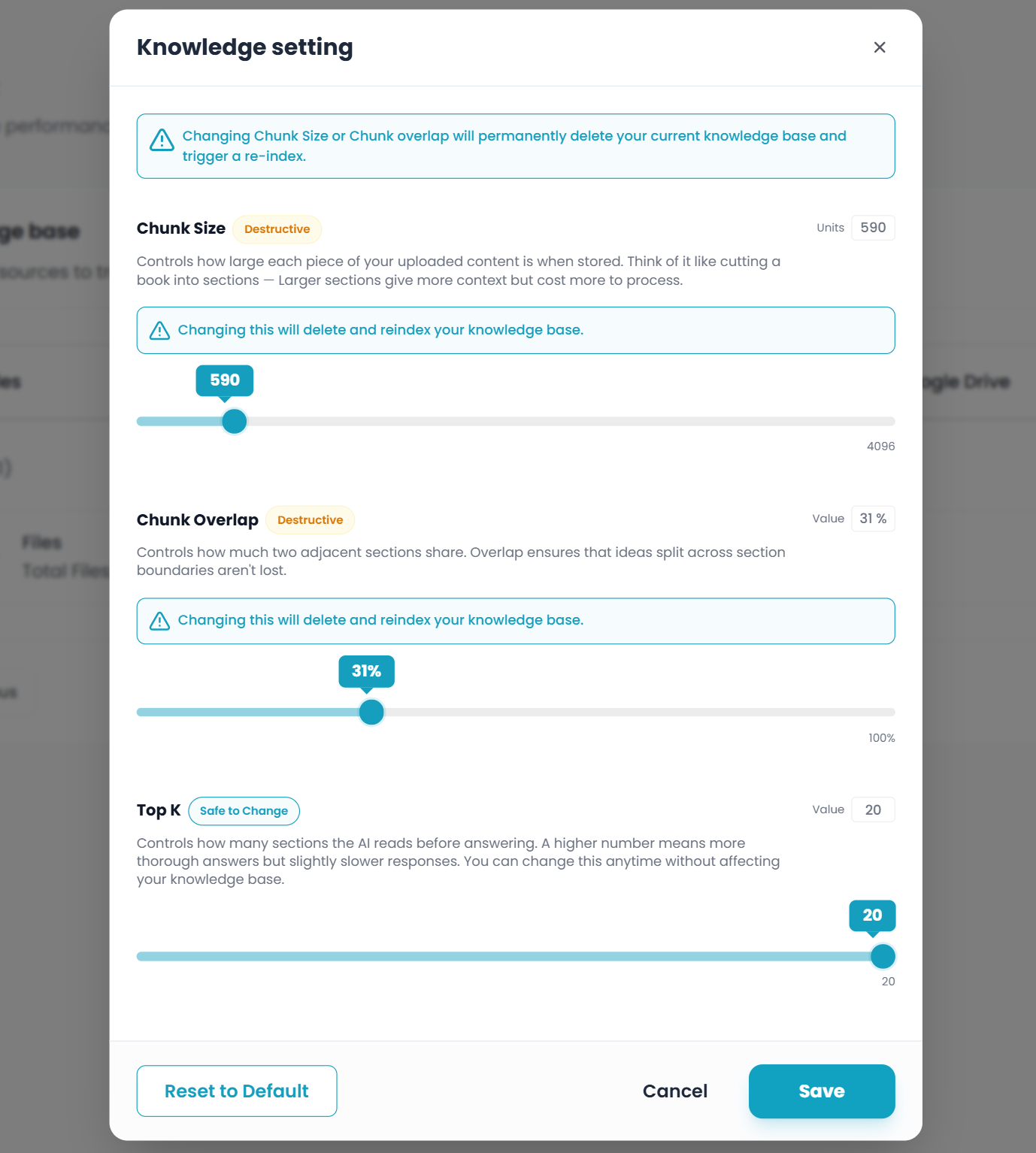
The panel shows three controls. Badges indicate whether saving can affect stored knowledge.
Chunk size (Destructive)
The maximum size of each chunk of text taken from your uploaded or connected content when it is stored and indexed — like splitting material into sections.
Range: 128–4096 (token-sized chunks)
Adjust with: Slider or direct input
Larger chunks give more context per piece but can cost more to process. Very small chunks can split ideas awkwardly.
Important: Changing chunk size removes the agent's current indexed knowledge and triggers re-indexing after you save. Treat this as a major change.
Chunk overlap (Destructive)
How much adjacent chunks share at their boundaries, expressed as a percentage (0%–100%). Overlap helps ensure ideas that fall on a chunk boundary are not lost.
Adjust with: Slider or direct input
Important: Changing overlap also clears and rebuilds indexed knowledge for that agent — the same class of change as chunk size.
Top K (Safe to change)
How many chunks the system may retrieve when answering a question — effectively "how many sections to read" before responding.
Range: 1–20
Higher values can mean more thorough answers and slightly more work per question.
Important: You can change Top K even when knowledge is already configured. Saving only Top K does not wipe your knowledge base the way chunk changes do.
Warnings shown in the product
Top of the dialog: Changing Chunk size or Chunk overlap will permanently delete your current knowledge base and trigger a re-index.
Under Chunk size and Chunk overlap: Changing this will delete and reindex your knowledge base.
Saving destructive changes: If your save includes changes to Chunk size or Chunk overlap, the product asks you to confirm — explaining that this erases the agent's stored memory so new indexing can run with the new rules.
Adjust values and save
Move the sliders or type in the fields until you have the values you want.
Select Save.
If you changed only Top K, the product saves without a destructive confirmation.
If you changed Chunk size or Chunk overlap, confirm when prompted — existing indexed knowledge will be cleared and rebuilt.
After a successful save, you will see confirmation that knowledge settings were saved. For destructive changes, allow time for re-upload / re-sync / re-index as your tenant normally does for that agent's sources.
Cancel closes the dialog without applying changes. Reset to Default restores the product's default values for all three controls before you save.
Tips
Tune Top K first if you only need more context per answer or faster replies — it is the safest adjustment while content is already indexed.
Change Chunk size or Chunk overlap when retrieval quality suggests chunks are too large, too small, or splitting badly — but plan for rebuilding knowledge afterward.
If answers say content is missing right after changing chunk settings, check that sources finished re-indexing and are still attached to the Knowledge base step.
If something goes wrong
Was this helpful?
Still need help? Share an idea