Canvas LTI Configuration Guide
Integrating CampusMind into Your Canvas Instance
Written By vendor@royalcyber.com
Last updated 8 months ago
This guide walks Canvas administrators through installing and enabling our LTI tool inside Canvas Course.
Admin Setup – Register the LTI Tool in Canvas
This step must be completed by a Canvas Account Admin.
Why This Step Is Required
Canvas requires external tools to be registered via a Developer Key using an LTI configuration file.
This generates a Client ID, which is then used to install the tool into the Canvas account.
This registers our LTI tool inside your Canvas account using the configuration file we provide.
Canvas will generate a Client ID, which is used to install the tool.
LTI Configuration File
Use the following LTI registration JSON when creating the Developer Key:
{
  "title": "CampusMind",
  "description": "App for Course",
  "target_link_uri": "https://classbuddy-revamp-ca-ltit.proudocean-d6f923ff.eastus2.azurecontainerapps.io/lti/launch/admin",
  "oidc_initiation_url": "https://classbuddy-revamp-ca-ltit.proudocean-d6f923ff.eastus2.azurecontainerapps.io/lti/login/",
  "oidc_initiation_urls": {},
  "public_jwk_url": null,
  "public_jwk": {
    "e": "AQAB",
    "n": "ntoQidZr7IL8ppqyUrenq-dUKv4mxxU1qUZyqu_bTzTHwwgfZcGk-McAZaYiGgiRcTDbv1tbuSm0s7sNUTuiZDOwuM4f8uu2ljxsUp1yQKI3ukcH8AzV5FnCuV_zYtANl2LwC9gIPHRc6xmoWD3mAAVhcWvApWklyhRipK262RBlIMEEXXxjhQRWprvI9mhkf0hQDa6d2uSNPhGWKOtPhhGqSXP5Ukd2THFxzcJoLslXu4aNoo87nlyNlzJ8NuMmsdF5SYpDH5WEkzA9_YklJVrNAJtrcPxz1rshY1P7HKEH6JA8KLIsLZfYRUqQVjQWTe21zuKF_iEJFVztzYxNAw",
    "alg": "RS256",
    "kid": "unique-key-id-12345",
    "kty": "RSA",
    "use": "sig"
  },
  "custom_fields": {
    "bar": "$Canvas.user.sisid",
    "name": "$Canvas.user.fullName",
    "email": "$Canvas.user.email",
    "roles": "$Canvas.membership.roles"
  },
  "scopes": [
    "https://purl.imsglobal.org/spec/lti-ags/scope/lineitem",
    "https://purl.imsglobal.org/spec/lti-ags/scope/result.readonly",
    "https://purl.imsglobal.org/spec/lti-nrps/scope/contextmembership.readonly",
    "https://canvas.instructure.com/lti/account_lookup/scope/show"
  ],
  "extensions": [
    {
      "domain": "",
      "tool_id": "",
      "privacy_level": "public",
      "platform": "canvas.instructure.com",
      "settings": {
        "platform": "canvas.instructure.com",
        "placements": [
          {
            "title": "CampusMind",
            "placement": "course_navigation",
            "visibility": "public",
            "message_type": "LtiResourceLinkRequest",
            "target_link_uri": "https://classbuddy-revamp-ca-ltit.proudocean-d6f923ff.eastus2.azurecontainerapps.io/lti/launch/admin"
          }
        ]
      }
    }
  ]
}
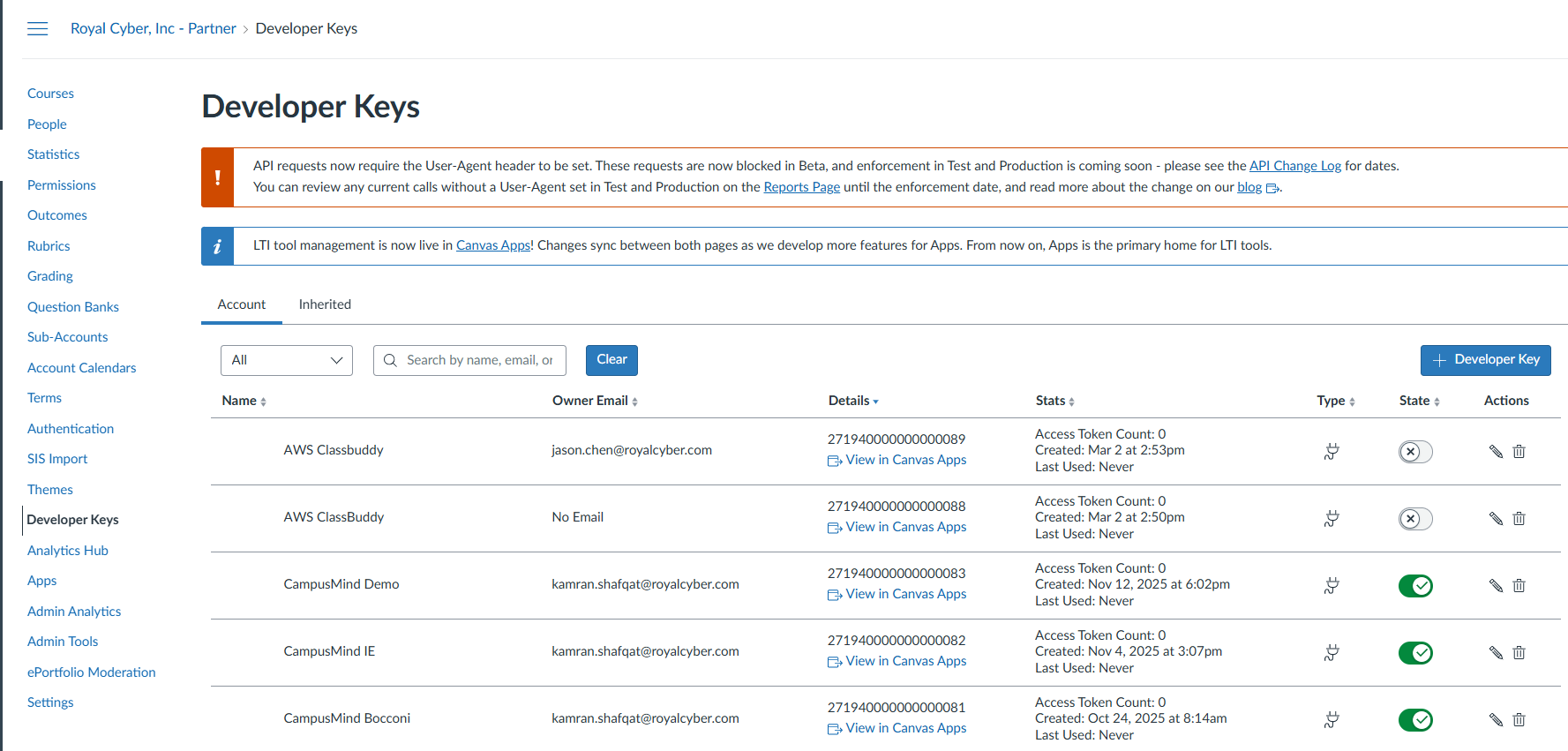
Step 1: Create a Developer Key
Log in to Canvas as an Admin
Go to Admin
Select your Root Account
Navigate to Developer Keys
Click + Developer Key
Select + LTI Key
Under Method, choose Paste JSON
Paste the LTI configuration JSON provided above
Click Save
Toggle the key ON to enable it
Step 2: Copy the Client ID
Locate the newly created Developer Key
Copy the Client ID displayed in the details panel
You will use this Client ID to install the app.
We will also need this client id to be set up in CampusMind.
Step 3: Install App in the Course
Open the target course
Go to Course Settings
Click the Apps tab
Click + App
Choose Configuration Type: By Client ID
Paste the Client ID
Click Submit
Confirm installation
✅ The tool is now installed only in this course.
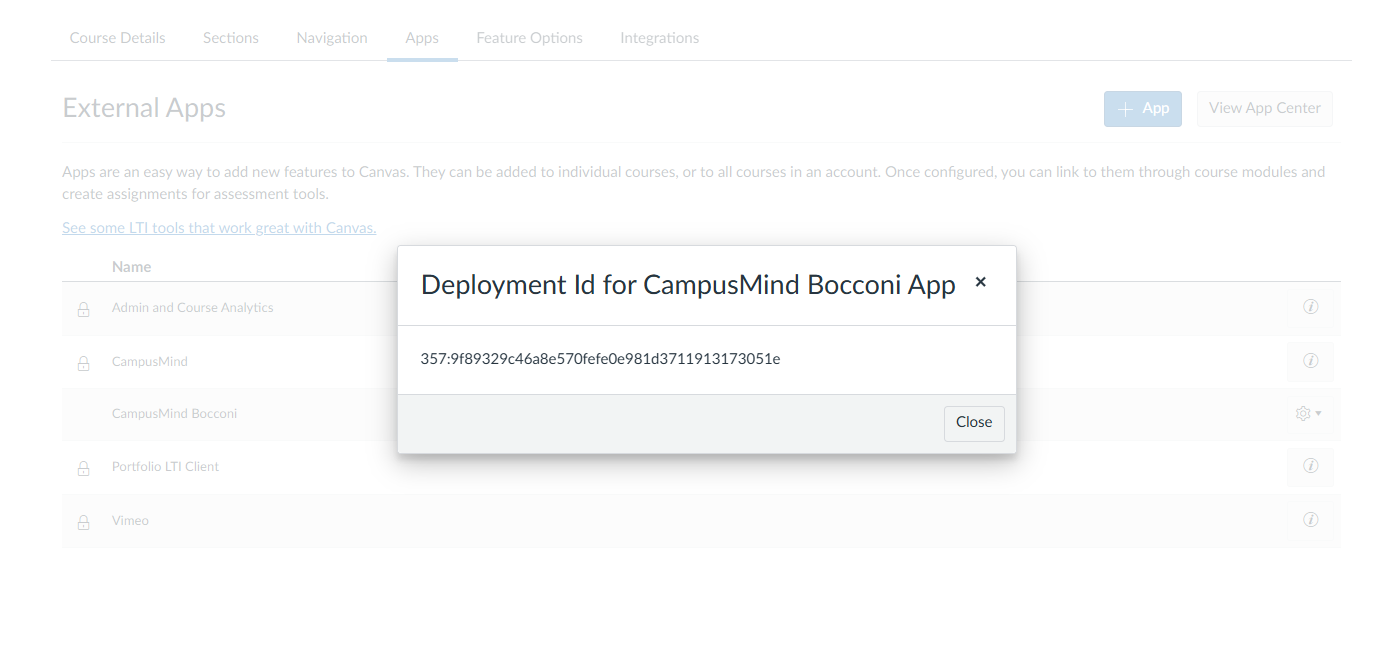
Step 4: Retrieve the Deployment ID
After course-level installation:
In the course, go to Settings → Apps
Locate the installed LTI tool
Click View Deployments
Copy the Deployment ID
This Deployment ID is unique to that course installation.
Please securely share:
Canvas Base URL (e.g., https://yourinstitution.instructure.com)
Client ID
Deployment ID
Course ID
Part 3: Enable the Tool in Course Navigation
Go to Course Settings
Click the Navigation tab
Locate the tool in the disabled section
Drag it into the active section
Click Save
The tool will now appear in the course sidebar.
Part 4: Course Access Token
Steps to Generate User Token
It must be created by a user account with access to course.
Click Account (top-left menu in Canvas)
Go to Settings
Scroll to Approved Integrations
Click + New Access Token
Enter a token name (e.g., “LTI Integration”)
Set an expiration date (recommended)
Click Generate Token
Copy the generated token immediately (it will not be shown again)
⚠️ This token is tied to the user account that generated it.
Final Checklist
Please share:
☐ Canvas Base URL
☐ Client ID
☐ Deployment ID
☐ Course ID
☐ User Access Token
Once these details are received, we will complete activation for that specific course.
Was this helpful?
Still need help? Share an idea