Virtual Teaching Assistant (VTA) Introduction
Written By Asad Jobanputra
Last updated 6 months ago
Overview
The Virtual Teaching Assistant (VTA) is the core agent within the CampusMind Teaching & Learning Workforce. It is a specialized, AI-powered course assistant designed to integrate directly with your course materials and Learning Management System (LMS) to provide students with 24/7, personalized, and accurate academic support.
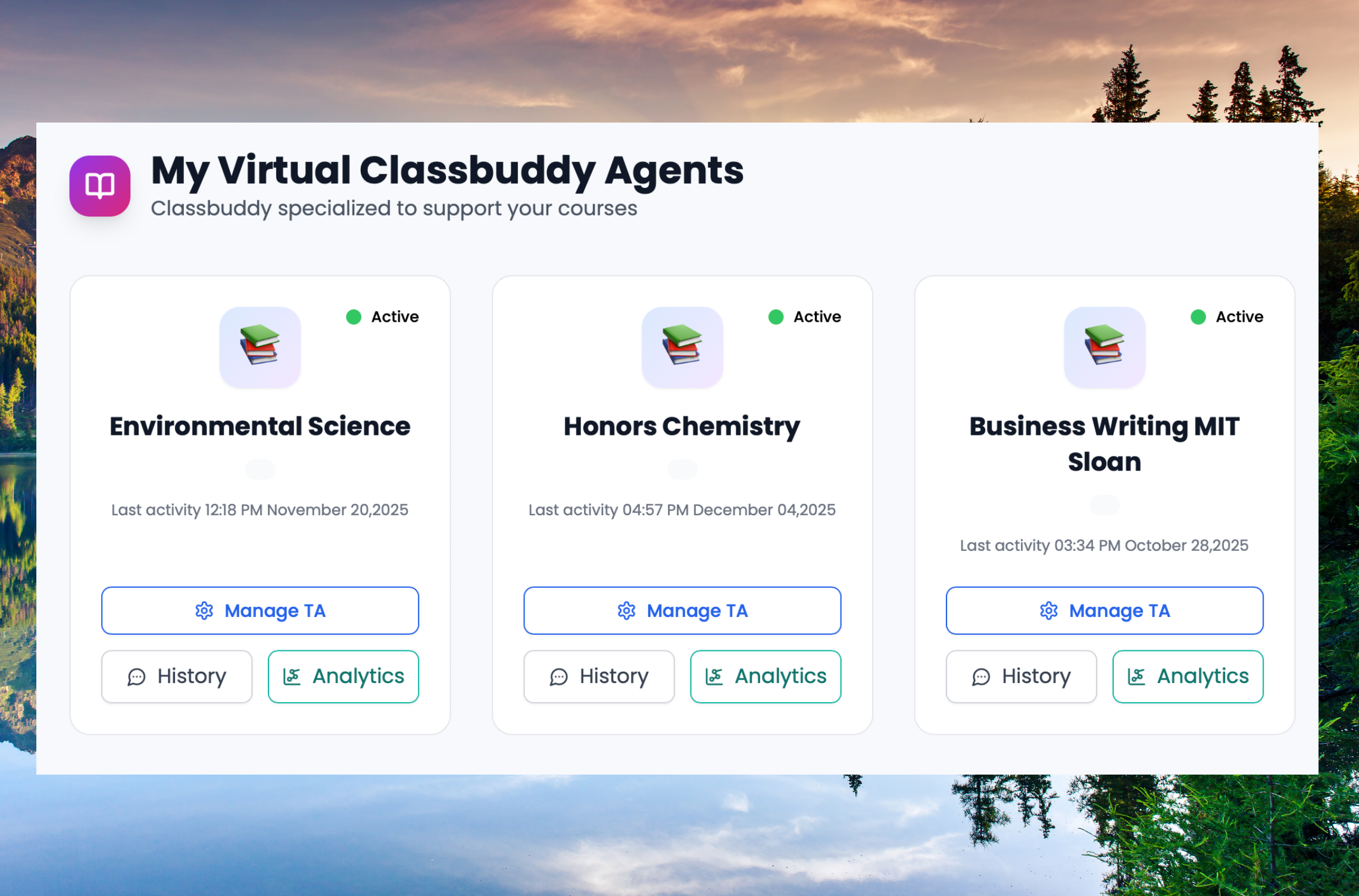
Who it's For
Instructors: The VTA helps instructors manage large classes, save time on routine Q&A, and provide consistent, high-quality support.
Students: The VTA offers students an instant, non-judgmental resource for clarifying course concepts, reviewing assignments, and preparing for exams.
Why Use It
The VTA is an essential tool for modern pedagogy and institutional efficiency:
Enhanced Student Engagement: Provides immediate feedback and answers, improving student morale and reducing abandonment when encountering difficult material.
Academic Integrity: By setting specific guardrails, the VTA ensures it acts as a study partner—not a cheat sheet—and only draws from the verified content you provide.
Scalability: The VTA can simultaneously handle inquiries from hundreds of students across multiple courses, providing a level of support that human TAs or instructors cannot physically maintain around the clock.
Key VTA Capabilities
Suggested Question Starters for Students
These examples guide students on how to leverage the VTA's capabilities for instant, course-specific support.
1. Clarifying Course Content
(The VTA will pull specific information directly from your uploaded materials.)
"According to the syllabus, what is the late submission policy for assignments?"
"Can you summarize the main points from the 'Week 5 Readings' PDF?"
"What is the definition of the $\text{net force } (F_{\text{net}})$ variable as described in the Chapter 3 lecture notes?"
"Can you help me locate the section in the textbook that discusses the concept of economic scarcity?"
2. Conceptual Review and Tutoring
(The VTA will clarify difficult concepts or review material interactively.)
"I don't understand the difference between Mendelian and non-Mendelian inheritance. Can you explain it in simpler terms?"
"Can you give me an example of how the Doppler Effect works in a real-world scenario?"
"I'm stuck on the concept of amortization. Can you walk me through the steps for calculating a simple loan payment?"
"Ask me three quick questions to test my knowledge on the material from last week's lecture."
3. Assignment and Exam Preparation
(The VTA acts as a study partner, guiding preparation without violating academic integrity.)
"What are the key concepts I should focus on when studying for the midterm exam?"
"Can you explain the format of the 'Final Project' as outlined in the assignment brief?"
"I'm starting the essay on post-structuralism. What are the three required sources from the reading list for this paper?"
"Create a study guide covering the main topics from Chapters 7 and 8."
"Generate 5 multiple-choice questions based on the lecture slides from this week."
"What are the learning objectives for this unit that relate to the upcoming quiz?"
Setting Up Your Virtual Teaching Assistant
This guide walks instructors through every configuration step to launch and customize a VTA for their course. The VTA integrates with Canvas as an LTI 1.3 plugin and can be fully configured from within the CampusMind platform.
Step 1: Course Details
The Course Details section is the foundation of your VTA. This is where you connect your CampusMind VTA to your Canvas course and provide the basic course identity that the AI will reference when assisting students.
Key fields to configure:
LMS Type: Select Canvas as your Learning Management System.
Canvas Course URL: Enter your institution's Canvas domain (e.g., yourschool.instructure.com) and the numeric Course ID.
Sync Course Information: Click this button to automatically pull in your course name, course code, and description directly from Canvas.
Course Name & Code: Displayed to students in the VTA interface so they always know which course they are interacting with.
Instructor & TA Details: Add the names and email addresses of the instructor and teaching assistants. Students will be directed to these contacts when the VTA cannot resolve a query.
Course Start & End Dates: Set the active date range so the VTA is automatically available only during the semester.
Course Logo: Upload a logo to visually represent your course inside the VTA chat widget — ideally the same logo used in your LMS.
Step 2: Student Information
The Student Information section configures how students first interact with the VTA. You can set a personalized Welcome Message that greets students when they open the chat, and define up to four Conversation Starters — suggested questions that help students understand what the VTA can do.
Example conversation starters:
"What are the key topics for this week?"
"When is the next assignment due?"
"Make me a study guide for unit 5."
"Summarize last class for me and make a study guide."
Step 3: AI Instructions
AI Instructions allow instructors to precisely shape how the VTA teaches and communicates. There are three sub-sections:
Tone & Voice
Controls the personality and emotional register of the VTA's responses. Options include:
Supportive & Friendly: Encourages students with a warm, motivating tone.
Friendly & Approachable: Balances emotional comfort with clarity.
Professional & Clear: Formal tone suited for technical or academic content.
Instructional Style
Determines the pedagogical method the VTA uses when responding. Options include:
Socratic Teacher: Builds critical thinking by guiding students through reasoning rather than giving direct answers.
Guided Practice: Provides structured exercises ideal for math, programming, or step-by-step problem solving.
Visual & Real-World Examples: Uses diagrams, analogies, and comparisons for visual learners.
Study Mode: Offers step-by-step guidance and interactive questions to help students discover answers independently.
Feedback Style
Controls how the VTA delivers feedback on student questions:
Offer Hints: Provides gentle guidance without giving away full answers, encouraging students to think through problems.
Direct Explanation: Gives clear, complete explanations when comprehension is the primary goal.
Step 4: Responsible AI
Responsible AI allows instructors to define guardrails that protect academic integrity and ensure the VTA behaves appropriately in all situations. There are two areas to configure:
Academic Integrity Rules
Pre-built guardrail toggles instructors can enable to prevent misuse. Common options include:
No External Resources: Restricts the VTA to course materials only — no external websites or videos.
Don't Write Full Essays: The VTA will assist with structure and feedback but will not write complete essays or reports for students.
Don't Perform Calculations: Guides students through the problem-solving process and formulas without doing the math for them.
Off-Limit Topics
Instructors can define specific subjects or question types the VTA should refuse to engage with. Each off-limit topic entry includes a name and a detailed behavior prompt that tells the VTA exactly what to say or do when the topic is encountered.
Tip: For any query the VTA cannot resolve, it will automatically direct students to the assigned Teaching Assistant or Professor.
Step 5: Training Data
The Training Data section is where you connect the VTA to course content so it can answer student questions accurately. There are two main components:
Canvas LTI Integration
To deploy the VTA inside Canvas as an LTI 1.3 tool, follow these steps:
In Canvas, go to Admin > Developer Keys > LTI Key and create a new key using your VTA's Client ID.
Copy the Client ID provided in the CampusMind Training Data panel (Campusmind Client LTI).
In Canvas, navigate to Settings > Apps > View App Configurations > Add App and enter the Client ID.
The LTI Tool URL (Target Link URL) is pre-generated in the CampusMind panel and should be copied exactly.
Once installed, the VTA will appear as a navigation item inside the Canvas course for enrolled students.
Course Content Sync
Configure which Canvas content the VTA will use as its knowledge base. You can enable or disable individual content types:
Announcements
Assignments
Pages (lecture notes, course pages)
Syllabus
Files (uploaded PDFs, documents, and lecture slides)
You can also configure the Data Synchronization Frequency (Daily, Weekly, or Monthly) to keep the VTA's knowledge up to date with your latest course content.
Step 6: LLM Settings
LLM Settings give administrators and instructors control over the underlying AI models and capabilities available to the VTA.
Available Models
Select which AI model powers your VTA. CampusMind supports Azure OpenAI-powered models:
GPT-4o: Full-capability model for complex reasoning, detailed explanation, and multi-step tutoring. Recommended for STEM and writing-intensive courses.
GPT-4o Mini: Faster and more cost-efficient for simpler queries such as FAQ-style questions, quick lookups, and basic summaries.
GPT-5: OpenAI's most advanced reasoning model, delivering superior multi-step problem solving, deep conceptual explanation, and nuanced academic support. Ideal for graduate-level and highly complex courses.
GPT-5.2: An enhanced mid-tier GPT-5 variant offering improved accuracy and instruction-following over GPT-5, with optimized performance for structured academic workflows and detailed tutoring sessions.
GPT-5.4: The highest-capability GPT-5 series model available on CampusMind, featuring advanced reasoning, extended context handling, and superior response quality. Best suited for research-intensive and professional-level coursework.
LLM Tooling
Enable additional capabilities for the VTA:
Web Search: Allows the VTA to supplement course content with real-time web data. Use with caution in courses requiring strict content grounding.
Code Interpreter: Enables the VTA to generate and explain code snippets. Recommended for computer science, data science, and programming courses.
Image Generation: Enables the VTA to generate visual learning resources and examples.
Debugging Options
Advanced options for troubleshooting and compliance:
Enable Traceability: Logs additional function calls and retrieval operations. Useful for diagnosing why the VTA returned a specific answer or failed to find relevant content.
Save Chat History: Stores all student conversations so instructors can review common questions, identify content gaps, and monitor engagement trends over time.
Step 7: Analytics Dashboard
The Analytics Dashboard provides instructors with real-time insight into how students are engaging with the VTA. Use this data to identify knowledge gaps, course content quality, and student support needs.
Key metrics tracked include:
New Questions: Total number of unique questions asked during the current period.
New Conversations: Total number of distinct chat sessions initiated by students.
Active Students: Number of unique students who engaged with the VTA.
Feedback Rate: Student satisfaction scores (thumbs up/down) collected at the end of conversations.
Token Usage Trends: Weekly token consumption to monitor usage and plan resource allocation.
Most Discussed Topics: Shows which VTA topic areas generated the most student queries, helping instructors identify content areas that may need reinforcement.
Active Users Over Time: A time-series chart showing student engagement patterns across the semester.
Frequently Asked Questions & Best Practices
Can students access the VTA outside of Canvas?
The VTA is embedded inside Canvas as an LTI tool, so students access it through their course's Canvas navigation. There is no separate login or URL required — students simply click the VTA link inside their Canvas course.
What happens when the VTA does not know the answer?
If the VTA cannot find relevant information in the course materials, it will tell the student honestly and direct them to contact the assigned TA or Professor. The VTA will never fabricate an answer. This behavior is enforced by the built-in AI guardrails and cannot be bypassed by the student.
How often should I update the training data?
We recommend synchronizing your Canvas data on a Weekly basis during an active semester. Update the sync whenever you publish major new course content such as new lecture notes, assignment updates, or the weekly announcement. Use the Sync Course Information button in the Training Data tab for immediate manual updates.
Is the VTA compliant with FERPA and student data privacy policies?
CampusMind is built on Azure OpenAI infrastructure and is designed to align with institutional data privacy requirements. Chat history is only stored when explicitly enabled by the instructor in LLM Settings. No student PII is shared externally. For institution-specific compliance requirements, please contact the CampusMind team.
Best Practice Tips for Instructors
Get the most out of the CampusMind VTA with these recommended practices:
Upload your full syllabus, course schedule, and all reading materials before the semester begins so the VTA has comprehensive knowledge from day one.
Use the Socratic Teacher or Study Mode instructional styles to encourage active learning rather than passive answer-seeking.
Enable the "Don't Write Full Essays" guardrail for writing-intensive courses to prevent academic dishonesty.
Check the Analytics Dashboard weekly to see which topics are generating the most questions. If a concept keeps surfacing, it may need additional explanation in your lecture or course materials.
Update your Canvas sync whenever you publish new announcements, assignment instructions, or lecture notes to ensure the VTA always has current information.
Set meaningful conversation starters that reflect the types of questions your students most commonly ask during office hours.
Enable Save Chat History to review the most common student queries at the end of each week and identify patterns that can inform future lectures or course redesigns.
Was this helpful?
Still need help? Share an idea