Agent Actions and Trigger Library Enable/Disable using Admin Permissions
Written By vendor@royalcyber.com
Last updated 6 months ago
Applies to: Settings → Connectors tab → Connector Permissions (CampusMind / Mind Platform). These choices govern what users can do with Pipedream connectors when they configure agents — specifically the Actions and Triggers they can create and manage.
Time: About 2 minutes.
When you finish, you will have decided which Action and Trigger capabilities are available across your tenant when teams build or update agents, and saved your selections.
Why this exists
Agents in CampusMind can do more than answer questions — they can take actions in connected apps (for example, creating a record in a system) and react to events that happen in those apps (a new email, a new file, and so on). These are powered by connectors.
Different organizations want different levels of control. Some are happy for any agent owner to set up new automations; others want to start cautiously and only allow people to browse what is available without creating or deleting anything yet.
Connector Permissions is the single place where an admin decides this for the whole tenant.
Benefits:
Safer rollout — Turn capabilities off while piloting agents and on as teams are ready. Avoid surprise automations being created before you are prepared to support them.
Clear scope — Separate Actions (do something) from Triggers (react to something), so you can adopt one paradigm at a time.
Predictable change management — Capabilities are tenant-wide and explicit, so support and security teams know what is possible.
Trade-offs to be aware of:
Turning capabilities off prevents the corresponding controls from being usable in Agent Builder for everyone in the tenant — including admins. Use it as a deliberate guardrail, not a routine on/off switch.
Turning capabilities on does not, by itself, give every user permission to use them — usual role and agent permissions still apply. It only allows the capability to exist on this tenant.
Before you start
You need permission to manage tenant settings. The Connectors tab only appears for users whose role allows it — if you do not see it in Settings, ask an administrator.
This is a tenant-level setting. Changes affect everyone in the tenant the next time they open Agent Builder.
Plan changes with whoever supports your agents — turning off Create capabilities mid-flight will hide creation controls users may already be relying on.
Open the Connectors tab
From the left sidebar, open Settings.
Select the Connectors tab (alongside Group Management, User Management, and, if enabled, LMS Config).
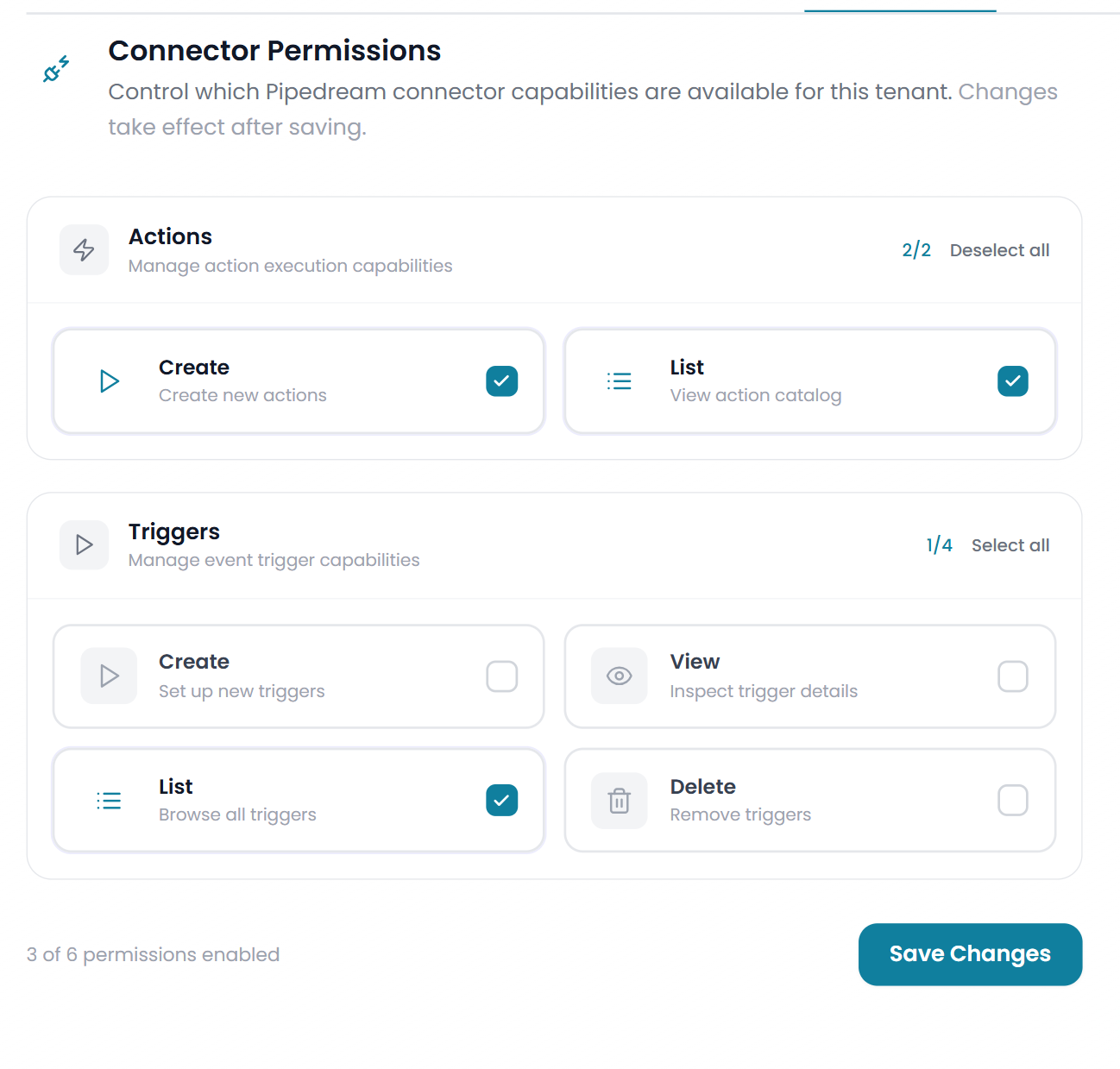
The Connector Permissions screen opens with the description: "Control which Pipedream connector capabilities are available for this tenant. Changes take effect after saving."
What each section does
The screen groups capabilities into Actions and Triggers. Each capability is shown as a card with a label, a short description, and a checkbox.
Actions — Manage action execution capabilities
Actions are things an agent can do in a connected app.
Triggers — Manage event trigger capabilities
Triggers are events from connected apps that an agent can react to.
Each section header shows a count of enabled capabilities (e.g., 2/2 or 1/4) and offers Select all / Deselect all for the whole section.
Where these capabilities show up in agents
When you toggle capabilities here, they affect what is visible and usable in Agent Builder for everyone in the tenant:
Actions capabilities affect the controls used to list and create actions inside an agent's tool/action configuration.
Trigger capabilities affect the Triggers experience when configuring agents and related interfaces that surface triggers.
If a capability is off, the related option does not appear or cannot be used — even for users whose role would otherwise allow it.
Adjust and save
Tick or untick each capability card you want to change. The card shows a check when enabled and a faint outline when disabled.
Use Select all / Deselect all in a section header to flip every capability in Actions or Triggers at once.
Watch the footer counter — for example, 3 of 6 permissions enabled — to confirm your overall state.
Select Save Changes.
The Save Changes button is disabled until you make a change. After a successful save, it returns to the disabled state until you make further changes.
On success, you will see: "Connector permissions saved."
To discard pending changes, leave the tab without saving (or untick the boxes you toggled).
Tips
Roll out List / View capabilities first if you want teams to explore what connectors offer, then enable Create when you are ready to support production automations.
Communicate changes. Because this is tenant-wide, a flip here can change what colleagues see in Agent Builder the next time they open it.
Was this helpful?
Still need help? Share an idea